
Dialer · job log · calendar

You hang up. You dictate. Done.

A dialer for tradespeople on the road, built around your calendar. No need to move your data: it works with the calendar you already use, right from the start.

  1. Call+44 7700 900123
  2. JobNora Taylor · battery replacement
  3. CalendarWed 7 Oct · 07:00
  • 14-day trial with full access
  • No sign-up, no account
  • Android 8.0 or newer
  • Your day works offline

No strings attached

  • Stop any time – everything staysYour jobs are in your Google Calendar and your customers in your contacts, still searchable. Nothing is lost.
  • No lock-out when the trial endsThe free Light version keeps the dialer, call list, contacts and search. You see today and tomorrow and can add 2 jobs and 10 memos a day; your earlier jobs stay in your calendar.
  • We don't collect your dataNo account, no server of our own, and no statistics on what you do in the app.
  • Yearly subscription, no monthly feeYou pay once a year, through Google Play.
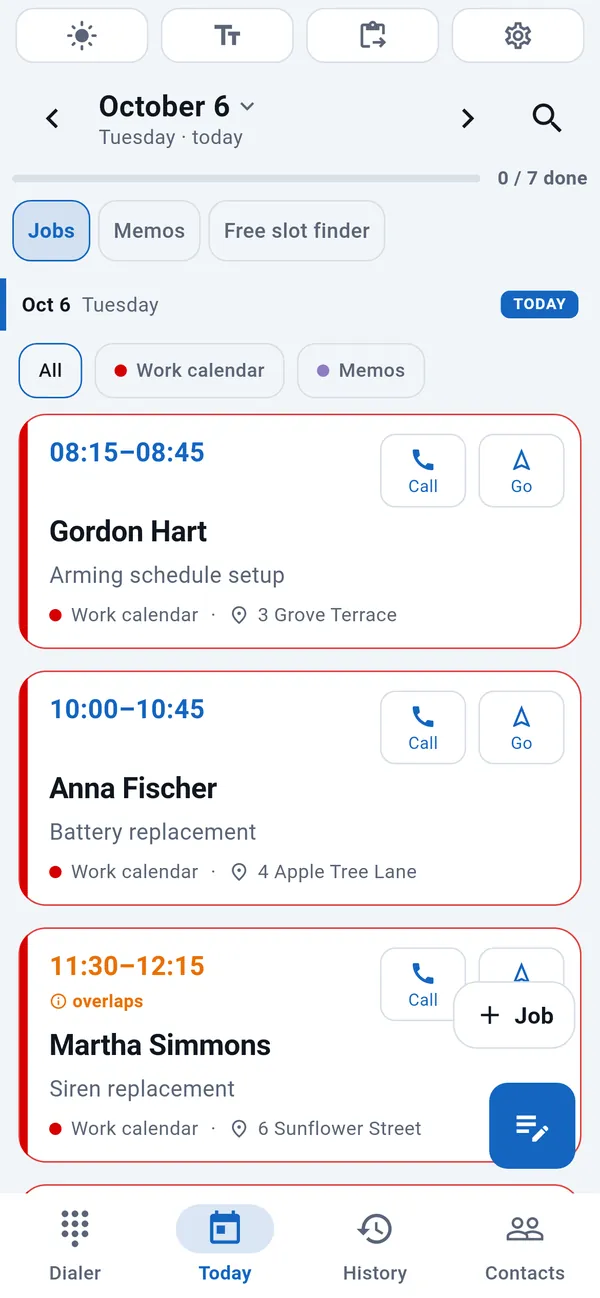
WorkDialer Today tab: list of today's jobs with time, customer name, job type and address.

In one minute

See it in action

Sixty seconds to see how a phone call turns into a job in your calendar.

Only loads from YouTube when you tap play.

While it rings

Before you pick up, you know who's calling and why.

If there's a job in your calendar for the caller's number, it shows up while the phone is still ringing: their next job – or, if there isn't one, the most recent – with when, what and where, and the last note you made about them underneath. Even if the caller isn’t in your contacts: the name comes from the calendar job.

No digging around mid-call, no asking them to repeat themselves: you know what it's about from the first sentence. This works in the free Light version too.

Nora Taylor

+44 7700 900123

Incoming call

Tomorrow 07:00

Battery replacement

12 Station Road, Reading

Gate code 1234, the dog is shut in

Drag right to answer

Illustration with made-up data.

No signal, no problem

Your day is still there when the signal isn't.

WorkDialer works from the calendar stored on your phone, not from a remote server. So with no mobile data you still see today's jobs with times, addresses and phone numbers, and your call history still shows each caller's job and your notes.

In a basement, out in the countryside, up a hill or abroad with roaming switched off. Anything you add in the meantime is kept and goes into your calendar at the next sync; anything someone else added appears once your phone syncs again.

TodayOffline
  • 07:00Nora Taylorbattery replacement
  • 09:30Anna Fischerannual service
  • 13:00Alexander Blacksite survey, new alarm
Illustration with made-up data.
  • What did I promise?Your daily note is organised by customer, not by time.
  • Where am I going?Today’s jobs from your calendar, with a route button.
  • When will I get there?Three taps prepare “I’ll be there in 30 minutes”, ready to send in your messaging app.
  • What’s still open?Unfinished jobs don’t disappear at the end of the day.

A working day with WorkDialer

Ten screens, from the morning overview to the closed job. The screenshots show made-up demo data.

01 / 10

Your day at a glance

Today's jobs in order, with addresses, one tap away.

The Today tab builds your day from your Google Calendar: who is waiting, when, where and for what job. Every card has a Call and a Go button, so one tap starts the call or the navigation. At the top you see how many jobs are already done.

02 / 10

Where does one more job fit?

The free slot finder shows the gaps in your day.

Choose how much time you need, from half an hour to three hours, and the app shows where it fits. If today is full, it shows the next day with a free slot. You can offer an appointment while still on the phone and book the job with one tap.

03 / 10

Know who called – and why

Your call history, linked to your jobs.

Next to every call you see whether the customer has a job in your calendar, when and where. Missed calls stand out at the top, with the note you wrote after the call right underneath. When you call back, you already know what it's about.

04 / 10

Your customers, together with their jobs

Contacts that remember the last visit.

For each customer, the contact list shows the date and type of the next or most recent job. Search by name or number in seconds and call with one tap.

05 / 10

A dialer that knows your customers

After just a few digits it suggests who you're looking for.

As you type a number or a name, matching customers appear right away. The big keys are easy to hit, even mid-job. Left- or right-handed layout is available.

06 / 10

Everything you need to know about a customer

Address, equipment, past jobs and your notes on one page.

The customer page shows the address, the booked job, what you noted last time and when you visited. With the tiles at the bottom you call, book a job or prepare an "On my way" message in one tap.

07 / 10

Every detail of the job in one place

What, where, when – and one button when you're done.

The job page shows the job type, the note, the address and the time, and you can change any of them with a tap. If the day runs late, Shift it moves the job. At the end, Mark done closes it.

08 / 10

Close a job in one step

Say what you did – and you're on your way.

When you finish a job, a small window asks what you did. Type or dictate your notes, then tap Close the job. Your calendar keeps a record of what you did and when.

09 / 10

From text message to job, no typing

Paste the message – it picks out the number and the day.

When a customer texts you what they need, just copy and paste it. WorkDialer picks out the phone number and the day; you tap the name in the text, and the address too if you want it. Tap Create job and the job page opens pre-filled.

10 / 10

A new job, already filled in

You only choose the job type and the time.

The new job page opens pre-filled: name, phone number, the day from the message and the customer's text. You add the address if needed, pick the job type and the time, and the job goes into your calendar.

01 / 10

Your day at a glance

The Today tab builds your day from your Google Calendar: who is waiting, when, where and for what job. Every card has a Call and a Go button, so one tap starts the call or the navigation. At the top you see how many jobs are already done.

02 / 10

Where does one more job fit?

Choose how much time you need, from half an hour to three hours, and the app shows where it fits. If today is full, it shows the next day with a free slot. You can offer an appointment while still on the phone and book the job with one tap.

03 / 10

Know who called – and why

Next to every call you see whether the customer has a job in your calendar, when and where. Missed calls stand out at the top, with the note you wrote after the call right underneath. When you call back, you already know what it's about.

04 / 10

Your customers, together with their jobs

For each customer, the contact list shows the date and type of the next or most recent job. Search by name or number in seconds and call with one tap.

05 / 10

A dialer that knows your customers

As you type a number or a name, matching customers appear right away. The big keys are easy to hit, even mid-job. Left- or right-handed layout is available.

06 / 10

Everything you need to know about a customer

The customer page shows the address, the booked job, what you noted last time and when you visited. With the tiles at the bottom you call, book a job or prepare an "On my way" message in one tap.

07 / 10

Every detail of the job in one place

The job page shows the job type, the note, the address and the time, and you can change any of them with a tap. If the day runs late, Shift it moves the job. At the end, Mark done closes it.

08 / 10

Close a job in one step

When you finish a job, a small window asks what you did. Type or dictate your notes, then tap Close the job. Your calendar keeps a record of what you did and when.

09 / 10

From text message to job, no typing

When a customer texts you what they need, just copy and paste it. WorkDialer picks out the phone number and the day; you tap the name in the text, and the address too if you want it. Tap Create job and the job page opens pre-filled.

10 / 10

A new job, already filled in

The new job page opens pre-filled: name, phone number, the day from the message and the customer's text. You add the address if needed, pick the job type and the time, and the job goes into your calendar.

After the call

You say what happened. It files the rest.

You hang up and dictate what the call was about. Your phone’s speech recogniser turns it into text: no audio recording is made, and the app never asks for microphone permission.

In the evening, this becomes your daily note, organised by customer rather than by time. Three conversations with the same customer stay in one block, together with any text message you paste in, so you can check the address against the customer’s written message.

Daily noteTuesday, 6 October
Anna Fischer+44 7700 900110
  • 09:44Gate code 1234, the dog is shut in
  • 10:52Battery replaced, yearly service next year
Fischer Furniture+44 7700 900111
  • 08:25Needs a quote for two detectors
  • SMS2 Market Square, we’ll wait at the back entrance
Alexander Black+44 7700 900113
  • 11:14Call back this afternoon, wants a new alarm
One day, one calendar entry, by customer. Made-up demo data.

Built for the field

  • Big buttonsEasy to hit with work gloves, on a ladder or in the van.
  • Left- and right-handed layoutFits the hand you hold your phone in.
  • Five screen tonesLight, Soft, Blue, Dark, Night. With “Follow time of day”, the theme switches by itself; your phone’s brightness is left alone.
  • T9 search with accentsSearch names on the number keys, accented letters included.
  • Adjustable text sizeBigger or smaller text with one button.
  • 26 languagesIt uses your phone’s language automatically: English, German, French, Spanish, Italian, Polish, Romanian, Swedish and 18 more European languages. You can also switch it in Settings.
  • Practice modeTry everything with made-up customers. Your own calendar is not touched.
  • Replaces your phone appSpeed dial on keys 2–9, number blocking, a short buzz when the other person answers, and the camera flash blinks when it rings, so you notice calls in a noisy place.
  • Works on tablets tooOn a wide screen it sits in the middle, so wrapping up the day on a tablet is comfortable.

Who it’s for

For sole traders and small teams

For tradespeople who visit customers themselves, and for whoever handles calls and manages the calendar back at the office.

Pick your trade and see what a call turns into:

  1. Call+44 7700 900150
  2. JobDripping kitchen tap
  3. Calendartomorrow 08:00

plumber · electrician · gas engineer · drainage engineer · air-conditioning engineer · boiler engineer · heat pump installer · solar installer · alarm installer · CCTV installer · gate technician · aerial installer · lift technician · fire safety technician · appliance repairer · carpenter · joiner · bricklayer · painter · tiler · insulation installer · roofer · sheet metal roofer · blind fitter · glazier · locksmith · chimney sweep · car mechanic · tyre fitter · gardener · tree surgeon · pool technician · pest controller · cleaner · removals · courier

Your data

Your data stays with you.

  • No sign-up, no serverNo account needed. Everything stays on your phone, in your own Google Calendar and your contacts, exactly where it lived before. It will still be there if you delete the app tomorrow.
  • Your call log goes nowhereThe app sends nothing from your call log and has no server of its own. Your calendar is on your phone offline too, so it works with no signal: in a cellar, in an underground car park, in a lift.
  • No audio recordingWorkDialer doesn’t make or store audio recordings. When you dictate, your phone’s own speech recogniser turns what you say into text; the app only receives the finished text.
  • Does not read your messagesIt only sees the text you paste in yourself.

Privacy policy →

Help

Getting started

  1. Installation and first launch

    1. Install WorkDialer from Google Play.
    2. On first launch the app asks to become your default phone app. Say yes – without it, it can't show your call history or the caller's job while the phone rings.
    3. Grant the requested permissions: phone, call log, contacts, calendar and notifications.
    4. The app asks one question: "Which calendar do you work in?" Pick the calendar you keep your jobs in. You can change it later.
  2. Job types

    Settings → My jobs. Add the jobs you do most often (for example: repair, battery replacement, maintenance) and how long they take. When booking, you pick one with a tap.

  3. Your workday

    Settings → Your workday. Set the usual job length, your start time and the time you allow for travel. Time suggestions and the free slot finder follow these settings.

  4. Message templates

    Settings → Text templates → Edit templates. Rewrite the confirmation and "On my way" messages in your own words.

  5. Appearance and controls

    • Light / dark: the sun icon in the top bar, or Settings → Appearance → Follow time of day.
    • Text size: the "Tt" button in the top bar.
    • Language: Settings → Appearance → Language.
    • Left- or right-handed layout: Settings → Using the app → Handedness.
  6. Try it without real data

    Settings → Practice → Practice mode. Practise everything with made-up customers and a made-up day – your own calendar and contacts are not touched.

Common questions

Do I have to move my customers into a new system?

No. It works with your existing Google Calendar and phone contacts right from the start. No imports, no sign-up and no data to move.

I work with a few people. Is this for us?

If you share a calendar, yes: everyone sees the same jobs, and closed jobs show up in the calendar too. For dispatch, reporting and invoicing, though, this is not the tool.

What's the best app for a sole trader to keep track of jobs and calls?

If you mainly need a phone and a diary, WorkDialer puts both in one Android app. Calls, customer notes and jobs go into the Google Calendar you already use – no account, no new system, no server.

Can I add notes to calls on Android?

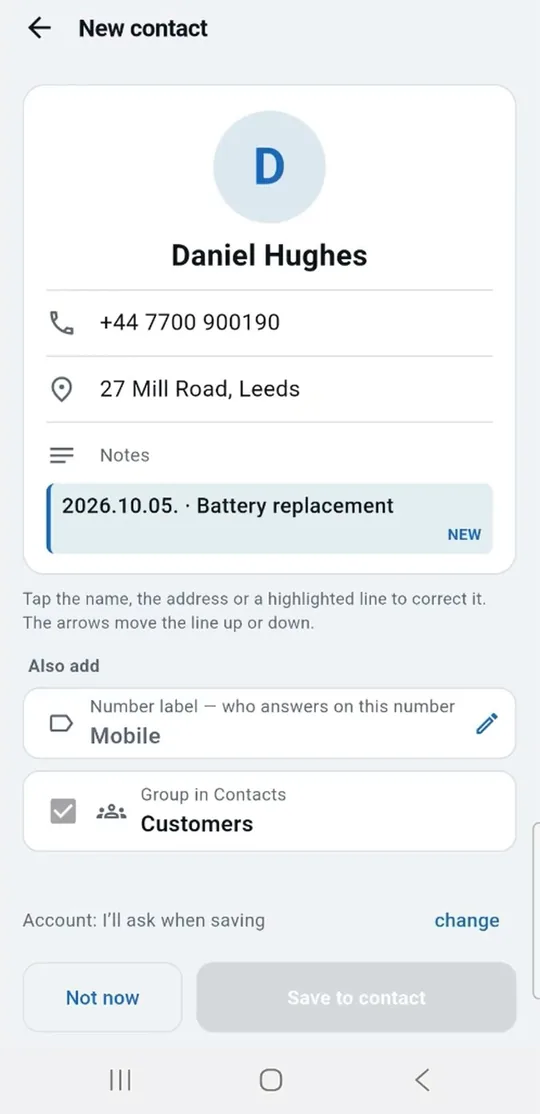
Yes. After a call you dictate what was said using your keyboard's voice input, and WorkDialer saves it as a memo with the customer. You can also keep a daily note for each customer. No audio is recorded.

Is there a job diary app that works with Google Calendar?

WorkDialer works directly with your own Google Calendar, or any calendar synced to your phone. Your existing appointments show up from day one, so there's nothing to import.

Does it work without signal?

Yes. WorkDialer works offline because your data stays on your phone and in your own calendar. Internet is only needed for the Google Play purchase.

Is WorkDialer available in English?

Yes. The app, the help and this website are fully in English. WorkDialer is available in 26 languages: it follows your phone’s language automatically, and you can change it in Settings.

How do I…?

Book a job after a call

After the call, or by tapping the customer in the call history, choose Add job to calendar. The name and number are already filled in: pick a job type and a time, then save.

Book a job from a text message
  1. Copy the customer's message in your messaging app.
  2. In WorkDialer tap the paste icon in the top bar, then Paste.
  3. The app picks out the phone number and the day. Tap the name in the text to mark it – and the address too, if you want it in the job.
  4. Tap Create job – the job page opens pre-filled; you only choose the job type and the time.

If you just want to keep it as a note, choose Just save as memo.

Find a free slot

On the Today tab tap Free slot finder and choose how much time you need. Tap the highlighted free slot to book the job right there.

Move a job

Open the job and tap Shift it. Pick the new day and time.

Close a job

Open the job and tap Mark done. Type or dictate what you did, then tap Close the job.

Send an "On my way" message

On the customer page tap the On my way SMS tile. The number of taps sets how many minutes until you arrive.

If you’re stuck

I can't see my jobs on the Today tab.

Check Settings → Day view → Calendars to show and make sure the calendar with your jobs is selected. Also check that calendar sync is turned on for your Google account in the phone's settings. If you just added something on your computer, use Reload calendars.

I can't save a job / "the calendar didn't accept it".

Probably no job calendar is selected, or the selected calendar is read-only (for example one shared with you). Under Settings → Your calendars → Calendar for jobs choose a calendar of your own that you can write to.

The call history is empty.

Only the default phone app sees the full call history. Make WorkDialer the default in your phone's settings: Apps → Default apps → Phone. Also check the call log permission.

Contacts don't show up.

Grant the contacts permission and check Settings → Contacts → Where contacts are read from.

Pasting didn't recognise the name.

That's on purpose: the app doesn't guess names. Tap the name in the text – one or two words – and you're done.

It picked the wrong day or address from the message.

You can change what was picked out with a tap on the job page, or switch it off on the paste page. The app only suggests; you decide.

I want to go back to my phone's own dialer.

In your phone's settings, go to Apps → Default apps → Phone and choose the previous one. Everything in your calendar and contacts stays.

I switched to a new phone.

Your jobs and contacts come with your Google account to the new phone (if they are in Google Calendar and your Google account). Your subscription is tied to your Play account – on the new phone, tap Restore purchase to get it back. The app’s own settings (job types, templates, field names, the calendars you picked, the look) need to be set up again.

The trial has ended – what happens?

Nothing is lost. The Light version stays free; you can switch PRO back on with a yearly subscription in the app.

Where is my data? Can anyone see it?

WorkDialer sends nothing from your call log, has no server of its own, and needs no account. Everything stays on your phone and in your own calendar. It uses the internet only for Google Play purchases. Privacy policy: workdialer.com/en/privacy/

Is there an iPhone version?

No. WorkDialer is built on Android's phone app features, which aren't available on iPhone.

You already have the calendar. This just adds the phone.

Android 8.0 or newer. No sign-up.

Contact

Got a question, or didn’t find the answer? Write to us.

Please tell us your phone model and what you saw on the screen (a screenshot helps a lot).

Perfekt Alarm Bt.
Kossuth L. u. 153.
2200 Monor, Hungary
Phone: +36 30 219 9290